How to open hp printer software for Mac?
How to open hp printer software for Mac?
It is very easy to access the HP printer software and if we talk about the basic HP printer software, HP utility has many features to be accessed. The HP Utility is printer management software that installs with the full feature Mac print driver package. With this, you can easily check the current printer status, view the remaining ink levels, and check the network settings, and much more. This article will help you to access the HP printer software without any interruptions.
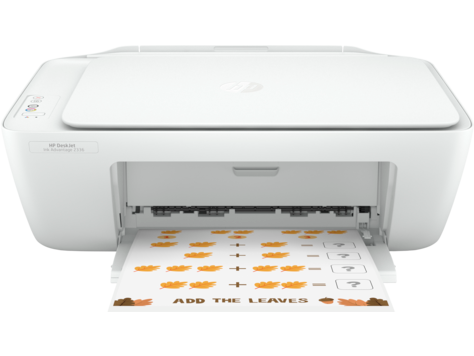
The moment you install the complete suite of HP printer software on Mac, from the website, the HP utility installs automatically and it should be readily available. All you need are some basic steps to be followed to open the HP utility on your Mac. So, let’s begin and learn these steps!
Here are the steps that you need to follow in order to access the HP printer software on Mac:
- Check
if the HP Utility is installed on the Mac, in order to see if the HP
Utility is installed on the Mac, you have to open the “Finder” option.
- Click
on the “Go” option in the top menu bar and then click on the Applications
option.
- Double
click on the HP folder and then tap on the “HP Utility” option.
- If
the HP Utility displays a setup along with the activation screen then you
have to tap on the “Continue” button to complete the software setup.
- And,
if the HP Utility is not in the “Application” list then you can install
the full feature driver.
- After
this, you need to install the driver and add the printer to the Mac.
- The
HP Utility is a part of the full feature software you need to install the
full feature driver from the HP website.
- You
need to turn on the printer.
- If
your printer is connected to the computer with the USB cable, then
disconnect the cable from the printer.
- The
software installation will prompt you to connect the cable if required.
- Just
go to HP customer support and tap on the “Software and driver downloads”
option.
- If
a “Let's identify your product to get started” page pops up, click on the
“Printer”, type your printer model number and then tap on the “Submit”
option.
- The
software results page for the printer displays the default operating
system selected.
- Remember,
if you need to change the operating system, then tap on the “Change”
button and select your version and then tap on the “Change” option again.
- Tap
on the “Download” option that is next to the HP Easy Start or that is next
to the full feature driver.
- Open
the “Downloads folder and then open the HP Easy Start” file or the full
feature driver .dmg file to begin the installation process.
- You
need to follow the on-screen instructions to setup the printer connection
and install the hp printer software.
- If
you are prompted or asked to add the printer to the printer queue, then
tap on the name of the printer and click on the “Use or Print Using” menu
and then select the name of the printer in the pop-up menu and then tap on
the “Add” button.
- You
can return to the HP installer to complete the installation process.
By the end of this topic, we are hoping that you are having
clarity on using the hp printer software on your Mac devices. However, if you
have queries related to the hp printer assistant driver or using the WPS pin on hp printer then you can visit the official website and get assistance from the
customer support team of experts available.

Comments
Post a Comment